Here is another Civil 3D blog. Cristopher F. from San Luis Obispo, CA writes Civil 3D Reminders. He has shared several undocumented commands.
Good job Christopher.
Showing posts with label Undocumented. Show all posts
Showing posts with label Undocumented. Show all posts
Tuesday, May 08, 2007


Tuesday, February 06, 2007
Pick-a-Part...Or Not
When working in drawings with LOTS of data the selection of a subentity to a object (ie. a surface label or a single point) can significantly decrease preformance. It is possible to toggle between the ability to select subentities or the selection of the main object only. The two commands that toggle this ability are:
DISABLESUBSELECTION - Turns off the ability to select subentities.
ENABLESUBSELECTION - Turns on the ability to select subentities.
Seems like an ideal case for custom Toolbar Buttons or Tool Palette tools.
DISABLESUBSELECTION - Turns off the ability to select subentities.
ENABLESUBSELECTION - Turns on the ability to select subentities.
Seems like an ideal case for custom Toolbar Buttons or Tool Palette tools.
Monday, February 05, 2007
Show Me AutoCAD Entities Only
Here is an interesting undocumented command:
VISUALAUDIT
When this command is used a drawing will display only AutoCAD objects (non-Civil 3D objects). All intelligent Civil 3D objects will be invisible until the command is exited by pressing an Escape, Enter, or a mouse-click.
This will help us verify if we exploded (or dummied-down) certain objects.
VISUALAUDIT
When this command is used a drawing will display only AutoCAD objects (non-Civil 3D objects). All intelligent Civil 3D objects will be invisible until the command is exited by pressing an Escape, Enter, or a mouse-click.
This will help us verify if we exploded (or dummied-down) certain objects.
Friday, June 16, 2006
Civil 3D - Undocumented Command
While addressing questions in the Disscussion Groups Dan Philbrick, Autodesk Civil 3D Development Manager, shared what he called an UNSUPPORTED/UNDOCUMENTED command. It is AecInspect.
This command asks users to "Hover over entity to inspect:" It then returns in a tooltip the type of entity hovered over and the entity's layer (see image).
The original question about determining the layer of an entity's subcomponent can not be determined via this command but I am sure that some will find this command very helpful.
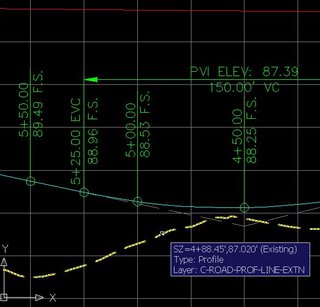
This command asks users to "Hover over entity to inspect:" It then returns in a tooltip the type of entity hovered over and the entity's layer (see image).
The original question about determining the layer of an entity's subcomponent can not be determined via this command but I am sure that some will find this command very helpful.

Monday, May 23, 2005
A Couple of Interesting Facts
Two bloggers pointed out a couple of things that I found interesting.
Lynn Allen mentioned the undocumented FILTERS command. This command brings up a dialog box (with no help button) that allows you to pick which layer filters you wish to keep or delete.
Ralph Grabowski pointed out that if an onject is on a locked layer will display the icon of a lock when you attempt to select it.
Ralph also mentioned that if you hold the shift key while doing a fillet or chamfer the software will do a radius 0 corner. I like that very much.
Lynn Allen mentioned the undocumented FILTERS command. This command brings up a dialog box (with no help button) that allows you to pick which layer filters you wish to keep or delete.
Ralph Grabowski pointed out that if an onject is on a locked layer will display the icon of a lock when you attempt to select it.
Ralph also mentioned that if you hold the shift key while doing a fillet or chamfer the software will do a radius 0 corner. I like that very much.
Tuesday, March 08, 2005
Undocumented Command
Nowhere in the Civil 3D Help system is there reference to the AECLINEWORKSHRINKWRAP command. This command is present in Land Desktop and is described in Land Desktop Help. You can use it in Civil 3D 2005.
To use it enter AECLINEWORKSHRINKWRAP at the command line. It then prompts you to "Select object(s) to generate shrinkwrap from:". Select object(s) and press Enter. A new Polyline will be created on the current layer from the silhouette/outline of the selected objects.
The command can also be entered after you have selected objects in Noun/Verb mode.
To use it enter AECLINEWORKSHRINKWRAP at the command line. It then prompts you to "Select object(s) to generate shrinkwrap from:". Select object(s) and press Enter. A new Polyline will be created on the current layer from the silhouette/outline of the selected objects.
The command can also be entered after you have selected objects in Noun/Verb mode.
Subscribe to:
Posts (Atom)
