I am not certain when this white paper was released, but we can now download a 6 page white paper titled "LandXML Drawing Support".
This paper contains information about importing and exporting LandXML data in AutoCAD Civil 3D 2008.
Unfortunately, many people who would benefit from the use of LandXML are either completely or significantly unaware of how LandXML can contribute to increasing the efficiency of their design processes. This paper is a good first step to see what data can be shared to other users, applications, and agencies.
Showing posts with label LandXML. Show all posts
Showing posts with label LandXML. Show all posts
Friday, May 18, 2007
Monday, September 11, 2006
The Tips Are Coming In
There are now 20 tips for Civil 3D in the Civil Engineering Community. I have found these are helpful for learning or recalling tips and tricks. As with just about everthing in the community pages, we can rate the usefulness of an item with a 5 star rating system.
Here are a few tip titles (along with their current ratings):
Increase performance when working with surfaces 5 STARS
Improve Drawing performance 4 STARS
Logging into Vault automatically 3 STARS
Importing LandXML data 4-1/2 STARS
Quick Profile 5 STARS
Note: In it's first week over 700 members have joined the community.
Here are a few tip titles (along with their current ratings):
Increase performance when working with surfaces 5 STARS
Improve Drawing performance 4 STARS
Logging into Vault automatically 3 STARS
Importing LandXML data 4-1/2 STARS
Quick Profile 5 STARS
Note: In it's first week over 700 members have joined the community.
Thursday, August 03, 2006
Civil 3D - SP2 Coming Soon
Service Pack 2 for Civil 3D 2007 will likely be available sometime next week. It should include Civil 3D 2K7 SP1A, and Map 2K7 SP1 & SP2.
Issues Resolved in Autodesk Civil 3D 2007 Service Pack 2
General
When closing the program, you no longer receive an error message after using the Object Property Manager.
Using the UNDO command after deleting or inserting an elevation point no longer causes the program to close unexpectedly.
Alignments
Version 2006 drawings that contain a Spiral Curve Spiral with the curve radius set to zero can now be migrated to version 2007 and the Spiral Curve Spiral is correctly displayed.
An issue with alignment station equations has been resolved and the station equation labels now display expected results.
Corridor
When pasting surfaces, dynamic corridor surfaces are filtered out of the selection set to avoid a situation dependency. You can create non-dynamically linked corridor surfaces to paste into an existing surface.
Using the DaylightStandard subassembly, you can create a corridor model with a horizontal slope limit and the material thickness will be applied to the horizontal links. Previously the material thickness was not applied to the horizontal links.
Changing a style of an exported corridor surface no longer causes the program to close unexpectedly.
When you specify corridor sections at Superelevation Critical Stations (from the Frequency To Apply Assemblies dialog box) the sections are now added.
Grading
Points and Elevations are now displayed accurately in the Elevation Editor.
There is improved performance using the Weed command on a feature line that was created from a polyline.
Using the Fillet command on feature lines no longer causes the program to close unexpectedly.
There is improved performance when using the Fit Curve command.
An issue with using Feature Line commands in multiple drawings has been resolved.
Using the Weed command now removes the expected points when using a weeding factor of 3D Distance. Previously not all the points that met the weeding factor were removed and all other points were removed.
Using the UNDO command after moving a grading object to a site no longer causes the program to close unexpectedly.
The maximum range for slope patterns is now displayed correctly. Previously, the slope pattern was displayed even though it was outside of the maximum range.
Elevation point z values are recognized when you add a PI to a feature line.
Entering the elevation difference on a new feature line no longer causes the Draw Feature Line command to end.
Creating a grading transition between mixed surface and elevation or distance targets no longer causes the program to close unexpectedly, however this will not result in creating a grading object because Civil 3D cannot find a valid solution for these conditions.
Labels
Using the Parcel Create by Slide Bearing command no longer causes the program to close unexpectedly when the parcel label styles contain custom expressions.
Duplicate entries are no longer created in parcel tables when you insert a new line.
Issues with parcel labels not erasing correctly have been resolved. The program no longer closes unexpectedly when using the erase command on multiple parcel labels. Labels are not redisplayed after using the erase command and then saving the drawing.
The direction arrow component type has been added to the general line label styles.
LandXML
Error messages are no longer displayed when you close a drawing after using the Export LandXML command.
When exporting multiple corridor models using the Export LandXML command the program no longer closes unexpectedly.
Parcels
The UNDO command produces expected results after using grip edits on parcels and no longer causes the program to close unexpectedly.
The UNDO command produces expected results after moving a parcel to another site and no longer causes the program to close unexpectedly.
An issue with converting a closed polyline to a parcel has been resolved.
Using grip edits on parcel lines displays expected results.
An issue with saving user defined properties in a .dwt file has been resolved.
There is improved performance when using the REGEN command for parcels.
Pipes
A set sump depth rule has been added. This rule is not added by default, but can be added to the structure rule set for use during junction structure creation (layout) or by changing all junction structure sump depths at once using the Apply Rules command.
In the Part Builder command, you can use Cyrillic and Asian characters in Catalog chapter names and part names.
When using the Change Flow Direction command, flow arrows are now displayed correctly.
Deleting structures no longer causes the program to close unexpectedly.
There is improved performance when opening version 2006 drawings that contain structure styles. The program no longer forces version 2006 drawings that contain structure styles to display the boundaries as solid.
There is improved performance when using pipe network references.
Points
An issue with editing Point Label Styles from the Point Panorama view has been resolved.
Points can no longer be selected in a viewport when they are on a layer that is frozen for that viewport.
Profiles
The correct information is now displayed in horizontal geometry bands for radius and curvature.
The pipe network band node in the profile view is now displayed in the first drawing you open. Previously, the first drawing you opened in a new session would be missing the node and you had to close and re-open the drawing.
Using the UNDO and REDO commands after deleting a sub-entity from the profile view no longer causes the program to close unexpectedly.
Performing station editing in multiple layout profiles no longer produces an error message.
Project Management
The Migrate Pre-Civil 3D Project command now creates the correct folder structure in the project.
Prospector
The program no longer closes unexpectedly when you close a drawing while the item previews are displayed in Prospector.
The Zoom To command zooms to the correct location after setting the UCS.
Surfaces
Contour smoothing no longer creates segments of zero length on closed contours. Previously the program would close unexpectedly when opening a drawing in which this occurred.
The Smooth Contours command no longer causes gaps in the contour display.
Issues with surface styles have been resolved. The program no longer closes unexpectedly when a surface is created that does not have an assigned style.
Surface labels display the correct values for Surface Slope Horizontal Distance.
The program no longer closes unexpectedly when using the Paste Surface command.
Creating Quick Profiles from a surface no longer causes the program to close unexpectedly.
An issue with the display of render masks has been resolved.
Survey
There is improved performance when importing field book files.
Using the Browse for Folder dialog box when specifying an equipment database path now returns the expected result and no longer causes the program to close.
The MCS survey figure command now starts the multipoint curve at the first point number following the command and ends correctly when other curve commands are processed.
An error message is now displayed stating that the file cannot be opened if you attempt to export a field book file to a network address where you do not have write access. The program no longer closes unexpectedly.
The Show Properties command for control points, non-control points, and directions now displays the properties in the item list view.
After inserting survey points into the drawing, using the Zoom To command from the Prospector shortcut menu for Points or Point Groups now returns correct results.
The program no longer closes unexpectedly when you attempt to close the Traverse Editor.
When using the Traverse Analysis command the Angle error now displays correctly for direction start and end traverse.
The Zoom To and Pan To commands on the Survey collection shortcut menus now return expected results.
The Browse To Observation command now returns expected results.
Changing values for the Interactive Graphics in the User Settings no longer closes the panorama view.
The Equipment Database item view list no longer closes when you right click on an Equipment item, in the list and select Make Current.
Editing Latitude and Longitude values for control points now returns the expected results for the Easting and Northing.
This Service Pack also includes resolution for the following AutoCAD issue:
An issue with slow performance has been improved when you open drawings that contain large numbers of blocks.
Issues Resolved in Autodesk Civil 3D 2007 Service Pack 2
General
When closing the program, you no longer receive an error message after using the Object Property Manager.
Using the UNDO command after deleting or inserting an elevation point no longer causes the program to close unexpectedly.
Alignments
Version 2006 drawings that contain a Spiral Curve Spiral with the curve radius set to zero can now be migrated to version 2007 and the Spiral Curve Spiral is correctly displayed.
An issue with alignment station equations has been resolved and the station equation labels now display expected results.
Corridor
When pasting surfaces, dynamic corridor surfaces are filtered out of the selection set to avoid a situation dependency. You can create non-dynamically linked corridor surfaces to paste into an existing surface.
Using the DaylightStandard subassembly, you can create a corridor model with a horizontal slope limit and the material thickness will be applied to the horizontal links. Previously the material thickness was not applied to the horizontal links.
Changing a style of an exported corridor surface no longer causes the program to close unexpectedly.
When you specify corridor sections at Superelevation Critical Stations (from the Frequency To Apply Assemblies dialog box) the sections are now added.
Grading
Points and Elevations are now displayed accurately in the Elevation Editor.
There is improved performance using the Weed command on a feature line that was created from a polyline.
Using the Fillet command on feature lines no longer causes the program to close unexpectedly.
There is improved performance when using the Fit Curve command.
An issue with using Feature Line commands in multiple drawings has been resolved.
Using the Weed command now removes the expected points when using a weeding factor of 3D Distance. Previously not all the points that met the weeding factor were removed and all other points were removed.
Using the UNDO command after moving a grading object to a site no longer causes the program to close unexpectedly.
The maximum range for slope patterns is now displayed correctly. Previously, the slope pattern was displayed even though it was outside of the maximum range.
Elevation point z values are recognized when you add a PI to a feature line.
Entering the elevation difference on a new feature line no longer causes the Draw Feature Line command to end.
Creating a grading transition between mixed surface and elevation or distance targets no longer causes the program to close unexpectedly, however this will not result in creating a grading object because Civil 3D cannot find a valid solution for these conditions.
Labels
Using the Parcel Create by Slide Bearing command no longer causes the program to close unexpectedly when the parcel label styles contain custom expressions.
Duplicate entries are no longer created in parcel tables when you insert a new line.
Issues with parcel labels not erasing correctly have been resolved. The program no longer closes unexpectedly when using the erase command on multiple parcel labels. Labels are not redisplayed after using the erase command and then saving the drawing.
The direction arrow component type has been added to the general line label styles.
LandXML
Error messages are no longer displayed when you close a drawing after using the Export LandXML command.
When exporting multiple corridor models using the Export LandXML command the program no longer closes unexpectedly.
Parcels
The UNDO command produces expected results after using grip edits on parcels and no longer causes the program to close unexpectedly.
The UNDO command produces expected results after moving a parcel to another site and no longer causes the program to close unexpectedly.
An issue with converting a closed polyline to a parcel has been resolved.
Using grip edits on parcel lines displays expected results.
An issue with saving user defined properties in a .dwt file has been resolved.
There is improved performance when using the REGEN command for parcels.
Pipes
A set sump depth rule has been added. This rule is not added by default, but can be added to the structure rule set for use during junction structure creation (layout) or by changing all junction structure sump depths at once using the Apply Rules command.
In the Part Builder command, you can use Cyrillic and Asian characters in Catalog chapter names and part names.
When using the Change Flow Direction command, flow arrows are now displayed correctly.
Deleting structures no longer causes the program to close unexpectedly.
There is improved performance when opening version 2006 drawings that contain structure styles. The program no longer forces version 2006 drawings that contain structure styles to display the boundaries as solid.
There is improved performance when using pipe network references.
Points
An issue with editing Point Label Styles from the Point Panorama view has been resolved.
Points can no longer be selected in a viewport when they are on a layer that is frozen for that viewport.
Profiles
The correct information is now displayed in horizontal geometry bands for radius and curvature.
The pipe network band node in the profile view is now displayed in the first drawing you open. Previously, the first drawing you opened in a new session would be missing the node and you had to close and re-open the drawing.
Using the UNDO and REDO commands after deleting a sub-entity from the profile view no longer causes the program to close unexpectedly.
Performing station editing in multiple layout profiles no longer produces an error message.
Project Management
The Migrate Pre-Civil 3D Project command now creates the correct folder structure in the project.
Prospector
The program no longer closes unexpectedly when you close a drawing while the item previews are displayed in Prospector.
The Zoom To command zooms to the correct location after setting the UCS.
Surfaces
Contour smoothing no longer creates segments of zero length on closed contours. Previously the program would close unexpectedly when opening a drawing in which this occurred.
The Smooth Contours command no longer causes gaps in the contour display.
Issues with surface styles have been resolved. The program no longer closes unexpectedly when a surface is created that does not have an assigned style.
Surface labels display the correct values for Surface Slope Horizontal Distance.
The program no longer closes unexpectedly when using the Paste Surface command.
Creating Quick Profiles from a surface no longer causes the program to close unexpectedly.
An issue with the display of render masks has been resolved.
Survey
There is improved performance when importing field book files.
Using the Browse for Folder dialog box when specifying an equipment database path now returns the expected result and no longer causes the program to close.
The MCS survey figure command now starts the multipoint curve at the first point number following the command and ends correctly when other curve commands are processed.
An error message is now displayed stating that the file cannot be opened if you attempt to export a field book file to a network address where you do not have write access. The program no longer closes unexpectedly.
The Show Properties command for control points, non-control points, and directions now displays the properties in the item list view.
After inserting survey points into the drawing, using the Zoom To command from the Prospector shortcut menu for Points or Point Groups now returns correct results.
The program no longer closes unexpectedly when you attempt to close the Traverse Editor.
When using the Traverse Analysis command the Angle error now displays correctly for direction start and end traverse.
The Zoom To and Pan To commands on the Survey collection shortcut menus now return expected results.
The Browse To Observation command now returns expected results.
Changing values for the Interactive Graphics in the User Settings no longer closes the panorama view.
The Equipment Database item view list no longer closes when you right click on an Equipment item, in the list and select Make Current.
Editing Latitude and Longitude values for control points now returns the expected results for the Easting and Northing.
This Service Pack also includes resolution for the following AutoCAD issue:
An issue with slow performance has been improved when you open drawings that contain large numbers of blocks.
Monday, July 10, 2006
Land Desktop 2007 & Civil Design Companion 2007 Service Pack 1 Available
We have a new co-worker here at KETIV Technologies. While explaining to him some of the checks that we run on computers prior to classroom training, I found, much to my surprise, that Service Pack 1 was available for Land Desktop 2007 and Service Pack 1 was available for Civil Design Companion 2007. I had not noticed them when I checked early Friday.
Some may question why mention a LDt service pack on this blog? This would be a good time to reiterate that we do not recommend immediately getting rid of Land Desktop for Civil 3D. There is a reason that both Civil 3D and Land Desktop are in the Civil 3D box. Users now have two tool boxes available to them in order to handle their design tasks. We do not throw away the first tool box (Land Desktop) when we get the newer, shinier toolbox (Civil 3D). We use whichever tool within whichever toolbox accomplishes our needs better and faster. Most often that will be Civil 3D. But, there are occasions that the better/faster tool may be Land Desktop.
"When?" you may ask. One example may be when needing to build a VERY LARGE surface from a LandXML file. Civil 3D may not be able to handle it and Land Desktop may.
Back to the matter of the Service Packs. In the Readme file for Land Desktop Service Pack 1, it mentions that in order for correct side-by-side use of products the following service packs should be installed:
Service Pack 1 for Land Desktop 2007
Service Pack 1 for Civil Design Companion 2007
Service Pack 1A for Civil 3D 2007.
That is probably enough for now.
Some may question why mention a LDt service pack on this blog? This would be a good time to reiterate that we do not recommend immediately getting rid of Land Desktop for Civil 3D. There is a reason that both Civil 3D and Land Desktop are in the Civil 3D box. Users now have two tool boxes available to them in order to handle their design tasks. We do not throw away the first tool box (Land Desktop) when we get the newer, shinier toolbox (Civil 3D). We use whichever tool within whichever toolbox accomplishes our needs better and faster. Most often that will be Civil 3D. But, there are occasions that the better/faster tool may be Land Desktop.
"When?" you may ask. One example may be when needing to build a VERY LARGE surface from a LandXML file. Civil 3D may not be able to handle it and Land Desktop may.
Back to the matter of the Service Packs. In the Readme file for Land Desktop Service Pack 1, it mentions that in order for correct side-by-side use of products the following service packs should be installed:
Service Pack 1 for Land Desktop 2007
Service Pack 1 for Civil Design Companion 2007
Service Pack 1A for Civil 3D 2007.
That is probably enough for now.
Wednesday, May 31, 2006
Civil 3D 2007 - LandXML White Paper
LandXML is still a mystery to some Land Desktop and Civil 3D users. I enjoy discussing it because LandXML can offer so many NEW options for users when considering sharing, transferring, archiving data, etc.
Recently posted at the Autodesk website is a Whitepaper that discusses the expanded LandXML functionality availible with LandXML 1.1 which is supported by Civil 3D 2007.
Recently posted at the Autodesk website is a Whitepaper that discusses the expanded LandXML functionality availible with LandXML 1.1 which is supported by Civil 3D 2007.
Monday, May 15, 2006
Civil 3D 2007 - Saving Back
I have recently been asked by people, who have opened Civil 3D 2006 drawings in 2007, what can they do to save the data back?
Well, because of the dwg change and thus a change in the definition of objects in Civil 3D 2007 (as compared to earlier versions), it is not possible to simply "save as" to an earlier version and access the intelligent civil data.
So the question is, what options do we have?
TS1056107 offers some guidance.
In order to VIEW drawings, in earlier versions of Civil 3D or in AutoCAD, as proxy graphics (see note below), you will need to use the AutoCAD Save As command.
To EDIT Civil 3D 2007 drawings in earlier versions it is necessary to "Export to AutoCAD" which creates a drawing with all of the intelligent civil data exploded to AutoCAD entities.
TS1056337 mentions that if we "export to AutoCAD while in plan view, the objects will not retain any elevation information.
To retain elevation information we can either explode intelligent civil objects twice to turn them into AutoCAD entities or use the "export to AutoCAD" while in a non-top view.
Lastly, please do not forget that we have the ability to Export to a LandXML file the Civil 3D Data and Import somewhere else. This works for most Civil data even though Civil 3D 2006 uses LandXML 1.0 and Civil 3D 2007 uses LandXML 1.1.
Note: Some users have been experiencing problems with their older drawings when opened in 2007. It has been recommended that they set PROXYGRAPHICS to "0".
Well, because of the dwg change and thus a change in the definition of objects in Civil 3D 2007 (as compared to earlier versions), it is not possible to simply "save as" to an earlier version and access the intelligent civil data.
So the question is, what options do we have?
TS1056107 offers some guidance.
In order to VIEW drawings, in earlier versions of Civil 3D or in AutoCAD, as proxy graphics (see note below), you will need to use the AutoCAD Save As command.
To EDIT Civil 3D 2007 drawings in earlier versions it is necessary to "Export to AutoCAD" which creates a drawing with all of the intelligent civil data exploded to AutoCAD entities.
TS1056337 mentions that if we "export to AutoCAD while in plan view, the objects will not retain any elevation information.
To retain elevation information we can either explode intelligent civil objects twice to turn them into AutoCAD entities or use the "export to AutoCAD" while in a non-top view.
Lastly, please do not forget that we have the ability to Export to a LandXML file the Civil 3D Data and Import somewhere else. This works for most Civil data even though Civil 3D 2006 uses LandXML 1.0 and Civil 3D 2007 uses LandXML 1.1.
Note: Some users have been experiencing problems with their older drawings when opened in 2007. It has been recommended that they set PROXYGRAPHICS to "0".
Monday, May 08, 2006
Civil 3D 2007 - Technical Solutions Series (TS1056340)
Today, I will try something new. As I find Technical Solutions posted in the Autodesk website, that related to Autodesk Civil 3D, that I believe are notable I will provide the link to them.
This is the first. TS1056340 describes why "Minimize Flat Areas" will not affect surfaces created by LandXML.
Why? because "Minimize Flat Areas" is intended to be used on surfaces made from contour data.
Click on the hyperlink above or the title of this post to see the full solution.
This is the first. TS1056340 describes why "Minimize Flat Areas" will not affect surfaces created by LandXML.
Why? because "Minimize Flat Areas" is intended to be used on surfaces made from contour data.
Click on the hyperlink above or the title of this post to see the full solution.
Wednesday, April 05, 2006
LandXML Revisited
What is Land XML? LandXML is a non-proprietary data standard created by a consortium of industry partners to share (import/export) "civil engineering data".
What type of data? Currently, LandXML 1.0, supports Cogo Points, Point Groups, Surfaces, Watersheds, Parcels, Alignments, Alignment Profiles, Alignment Cross Sections, and Pipe Networks. Shortly, 1.1 will addtionally support survey and corridors model data.
How do we use it? In Civil 3D from the "General" menu pulldown select "Import LandXML..." or "Export LandXML..."
What can we do with it? It can be used for any of the following:
1. To transfer data from a supported software application to another supported application (like LDt to Civil 3D).
2. To convert data from imperial units to metric or vice versa (automatically).
3. To globally translate/rotate coordinates (via settings).
4. To archive data at important milestones.
5. To generate reports about civil objects/data (via LandXML Reporting).
6. To allow 3D viewing of civil objects/data in a LandXML viewer (such as Autodesk Envision 8).
Six years after in was introduced it is amazing that MANY groups that would clearly benefit from the use of LandXML do not know of it's existance. Many people have dropped the ball on this one.
For example, I have used LandXML to export civil data from corrupt Civil 3D drawings and then imported the data into a clean new drawing. Problem solved.
Click on the title of this post to get to the LandXLM.org website and see examples, list of support software, and other facts.
I am revisting this topic for a few reasons. The first is because I am adding information to it. The second is because when someone does a "SEARCH THIS BLOG", via the button in the upper left hand corner, for any topic of interest, the search mechanism only goes back one year and the original post was on Feb. 14, 2005 (a little more than 1 year ago). Thirdly, because it has been one of the most viewed posts of all time (within this blog of course). Lastly, I am revisiting this subject because LandXML 1.1 is within days (weeks?) of being ratified and it will include additional capabilities.
What type of data? Currently, LandXML 1.0, supports Cogo Points, Point Groups, Surfaces, Watersheds, Parcels, Alignments, Alignment Profiles, Alignment Cross Sections, and Pipe Networks. Shortly, 1.1 will addtionally support survey and corridors model data.
How do we use it? In Civil 3D from the "General" menu pulldown select "Import LandXML..." or "Export LandXML..."
What can we do with it? It can be used for any of the following:
1. To transfer data from a supported software application to another supported application (like LDt to Civil 3D).
2. To convert data from imperial units to metric or vice versa (automatically).
3. To globally translate/rotate coordinates (via settings).
4. To archive data at important milestones.
5. To generate reports about civil objects/data (via LandXML Reporting).
6. To allow 3D viewing of civil objects/data in a LandXML viewer (such as Autodesk Envision 8).
Six years after in was introduced it is amazing that MANY groups that would clearly benefit from the use of LandXML do not know of it's existance. Many people have dropped the ball on this one.
For example, I have used LandXML to export civil data from corrupt Civil 3D drawings and then imported the data into a clean new drawing. Problem solved.
Click on the title of this post to get to the LandXLM.org website and see examples, list of support software, and other facts.
I am revisting this topic for a few reasons. The first is because I am adding information to it. The second is because when someone does a "SEARCH THIS BLOG", via the button in the upper left hand corner, for any topic of interest, the search mechanism only goes back one year and the original post was on Feb. 14, 2005 (a little more than 1 year ago). Thirdly, because it has been one of the most viewed posts of all time (within this blog of course). Lastly, I am revisiting this subject because LandXML 1.1 is within days (weeks?) of being ratified and it will include additional capabilities.
Wednesday, March 01, 2006
Civil 3D 2007

As Autodesk introduces the NEW family of 2007 products (shipping in the next month or two) there will be lots to talk about. Here we will focus of course on Civil 3D 2007. What will be there? What will not? I will mention a few general topics today with detailed posts in the near future.
Lets begin.
One of the most obvious additions to Civil 3D is the entirely new Survey functionality and the survey observation object.
The Project environment will now be managed by the core data management capabilities of Autodesk Vault. It will allow for the sharing of:
Points
Surfaces
Alignments
Profiles
Pipe Networks (NEW)
Survey Data (NEW)
Corridors will create named surfaces directly. We will no longer have to export non-associated surfaces. We will also be able to select an existing polyline as a corridor boundary (cool). There will be new subassemblies.
Profiles will now be element-based (free, floating, fixed). This allows for similar constraints as horizontal alignments.
Grading Feature Lines will be controlled by a new set of tools which include the ability, similar to LDt, to create offsets with elevational differences.
Quick sections will be able to be created from AutoCAD objects.
We will be able to create a Pipe Network from a polyline and create an alignment from an existing pipe network. Pipe interference detection will be possible.
Styles management will include the ability to Merge, Copy, or Rename any duplicates found during drag-and-drop operations.
Labels will be able to contain data from various object types in our models. We will be able to include expressions (formulas) in a label style. The labeling of lines, arcs and polylines with style based labels will be possible. I am confident that many will appreciate that masks will be able to be added to labels to hide object behind the label.
We will be able to reset a Point's elevations based on an existing surface. Changing an individual point's rotation angle graphically will be possible.
LandXML 1.1 support for survey and corridor data will help matters.
These are just a few of the enhancements that caught my eye. These plus those found in AutoCAD 2007 and Map 3D 2007 (because Civil 3D is built on top of these products) will give us lots benefit from.
OK, that is enough for now. As I said, I hope to add comments and details in the coming days, and weeks, as time permits.
Tuesday, September 20, 2005
LandXML Accuracy
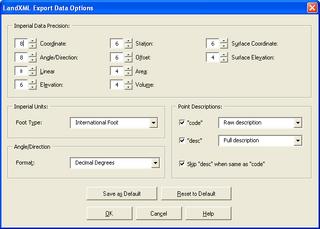
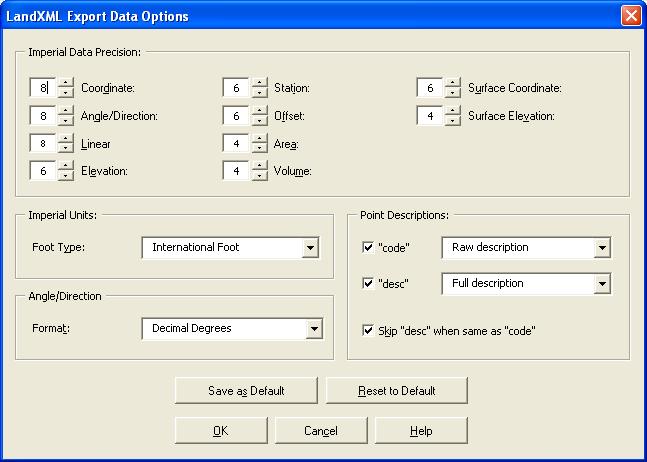
I had recently received a LandXML file created in Land Desktop 2006 that was curious in that all of the values were rounded to whole numbers. After a little investigation we found that the creator of the LandXML file unknowingly had the Precision set to zero (0) decimal places for all values when exporting to LandXML.
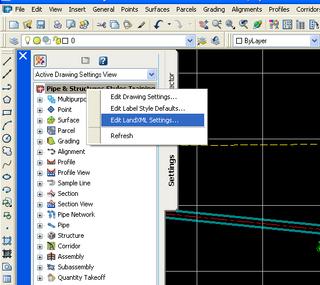
Prior to exporting to set or review the settings for LandXML in Civil 3D 2006 we should in the "Toolspace" palette, on the "Settings" tab, right-click on the drawing name and select "Edit LandXML Settings..." (See Image).
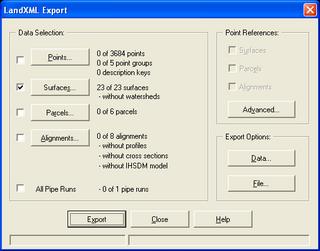
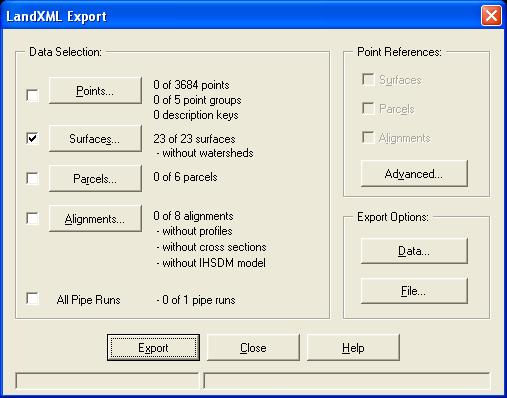
To do similar in Land Desktop 2006 from the "Projects" menu pulldown select the "Export to LandXML..." command. In the "LandXML Export" dialog box we press the "Data..." button under "Export Options:"
You will see the following dialog box.
If there is one thing that I have learned in this business, that is to "Always Double Check!"
Prior to exporting to set or review the settings for LandXML in Civil 3D 2006 we should in the "Toolspace" palette, on the "Settings" tab, right-click on the drawing name and select "Edit LandXML Settings..." (See Image).

To do similar in Land Desktop 2006 from the "Projects" menu pulldown select the "Export to LandXML..." command. In the "LandXML Export" dialog box we press the "Data..." button under "Export Options:"
You will see the following dialog box.
If there is one thing that I have learned in this business, that is to "Always Double Check!"
Thursday, September 08, 2005
Importing Points Part I
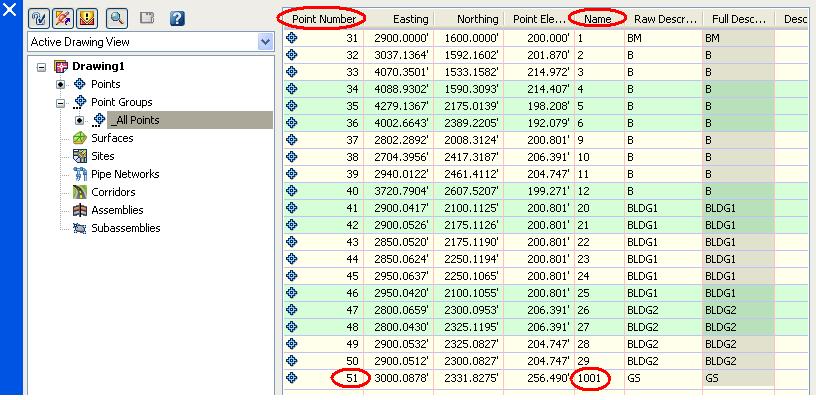
We know that there are several ways to import point data into Autodesk® Civil 3D® 2006. We can...
1. Import Points from an ascii file.
2. Use LandXML to transfer the points.
3. Use the
Not everyone knows that methods 1 and 3 will give us better results.
Why? Well unfortunately the LandXML format stores the point's number as
< CgPoint name="PointNumber"... >.
When the LandXML point data is imported into Civil 3D it is read as the Point Name NOT the Point Number. It will be handled as not having a number and will be automatically sequentially numbered.
Note: It is not possible to Use the "Import Data from Land Desktop..." (IMPORTLDTDATA) command to import the point data directly. This only supports the importation of Description Keys, Surfaces, Alignments, and Parcels.


Thursday, March 10, 2005
NEW! Civil 3D 2006
In the coming days, and weeks, I along with many others will begin providing information about the soon to be released Autodesk Civil 3D 2006. This product incorporates all of the improvements of AutoCAD 2006, and Map 2006 (and there are many). Civil 3D 2006 also contains new features and enhancements of many existing features.
Today, I will briefly mention a few topics that I will expand upon in the near future.
Improvements were added to just about every section of the software such as, Points, Surfaces, Sites, Parcels, Alignments, Corridors, Profiles, Profile Views, LandXML Import/Export, and the API (specifics are forth coming).
Brand new features include Pipes and Structures, and Multi-Drawing Access to: Surfaces, Alignments, and Profiles (again, specifics will be forth coming)
I look forward to learning about Civil 3D 2006 and sharing the information with all that are interested.
Today, I will briefly mention a few topics that I will expand upon in the near future.
Improvements were added to just about every section of the software such as, Points, Surfaces, Sites, Parcels, Alignments, Corridors, Profiles, Profile Views, LandXML Import/Export, and the API (specifics are forth coming).
Brand new features include Pipes and Structures, and Multi-Drawing Access to: Surfaces, Alignments, and Profiles (again, specifics will be forth coming)
I look forward to learning about Civil 3D 2006 and sharing the information with all that are interested.
Tuesday, February 15, 2005
LandXML Part II
With LandXML you can import the following types of data into Civil 3D:
COGO points
Point groups
Surfaces
Parcels
Alignments
Alignment profiles
Note: The LandXML Import command does not support cross sections.
Note: The LandXML import functionality automatically handles the conversion between the units specified in the LandXML file and the current drawing units.
Note: LandXML does not transform coordinate systems automatically, so no specific coordinate system transformation is applied other than what is specified by the translation and rotation settings.
You can export the following types of data from Civil 3D:
COGO points
Point groups
Surfaces
Watersheds
Parcels
Alignments
Alignment profiles
Alignment cross sections
COGO points
Point groups
Surfaces
Parcels
Alignments
Alignment profiles
Note: The LandXML Import command does not support cross sections.
Note: The LandXML import functionality automatically handles the conversion between the units specified in the LandXML file and the current drawing units.
Note: LandXML does not transform coordinate systems automatically, so no specific coordinate system transformation is applied other than what is specified by the translation and rotation settings.
You can export the following types of data from Civil 3D:
COGO points
Point groups
Surfaces
Watersheds
Parcels
Alignments
Alignment profiles
Alignment cross sections
Monday, February 14, 2005
LandXML
Although, it has been around since Land Desktop Release 2i as an extension (this was version 0.88) and Land Desktop 3.01 in its current version (version 1.0) LandXML is not often the first solution users think of when it is necessary to transfer data between different applications, or between different offices or users.
LandXML is a non-proprietary data standard created by a consortium of industry partners.
It can be used for any of the following:
1. To transfer data from a supported software application to another supported application (like LDt to Civil 3D).
2. To archive data at important milestones.
3. To convert data from imperial units to metric or vice versa.
4. To globally translate/rotate coordinates.
Click on the title of this post to get to the LandXLM.org website.
LandXML is a non-proprietary data standard created by a consortium of industry partners.
It can be used for any of the following:
1. To transfer data from a supported software application to another supported application (like LDt to Civil 3D).
2. To archive data at important milestones.
3. To convert data from imperial units to metric or vice versa.
4. To globally translate/rotate coordinates.
Click on the title of this post to get to the LandXLM.org website.
Thursday, August 19, 2004
What Does It Do?
Specifically Autodesk Civil 3D can do the following:
Data Management and Sharing-
-Import directly from Autodesk Land Desktop 2004 Project Data
-Import/Export via LandXML 1.0
COGO-
-Create points
-Point Groups
-Description Keys
Terrain Modeling-
-Create Surfaces
-Visualize Surfaces
-Analyze Surfaces
Sites-
-Create Parcels
-Create Alignments
-Generate Profiles
-Generate Sections
-Create Grading Objects
What it cannot do yet:
Road Sections-
Hydrology-
Pipes-
No Survey Module-
Data Management and Sharing-
-Import directly from Autodesk Land Desktop 2004 Project Data
-Import/Export via LandXML 1.0
COGO-
-Create points
-Point Groups
-Description Keys
Terrain Modeling-
-Create Surfaces
-Visualize Surfaces
-Analyze Surfaces
Sites-
-Create Parcels
-Create Alignments
-Generate Profiles
-Generate Sections
-Create Grading Objects
What it cannot do yet:
Road Sections-
Hydrology-
Pipes-
No Survey Module-
Subscribe to:
Comments (Atom)
