Because Civil 3D 2007 installs Autodesk Data Management Server (ADMS) 5 and Civil 3D 2008 installs ADMS 2008, and because these two items can not co-exist on the same machine, Autodesk has released for Civil 3D 2007 - ADMS 2008 Support Patch. This will allow Civil 3D 2007 with Service Pack 3 to connect to ADMS 2008.
This will solve this challenges for those that are configured this way..
Showing posts with label Data Management. Show all posts
Showing posts with label Data Management. Show all posts
Monday, May 21, 2007


Tuesday, January 23, 2007
Read the Labels
I have now been able to provide "labels" for the majority of the almost 400 posts of this blog.
You will notice at the bottom of most posts what Blogger terms "labels". Other applications might use the term tags. If you pick on a "label" all blog posts that have similar "labels" will be displayed. I accomplished this relatively quickly and not with a fine-tooth comb. So there may be some posts that are not perfectly "label"ed.
This was worth the effort because this can be a good method to find all posts that have to do with a particular subject, such as Vault or Profiles etc.
Give it a try, see if it helps. Feel free to comment about any posts or "labels".
I will add some of the current "labels" to this post, to kick start the process.
You will notice at the bottom of most posts what Blogger terms "labels". Other applications might use the term tags. If you pick on a "label" all blog posts that have similar "labels" will be displayed. I accomplished this relatively quickly and not with a fine-tooth comb. So there may be some posts that are not perfectly "label"ed.
This was worth the effort because this can be a good method to find all posts that have to do with a particular subject, such as Vault or Profiles etc.
Give it a try, see if it helps. Feel free to comment about any posts or "labels".
I will add some of the current "labels" to this post, to kick start the process.
Wednesday, January 03, 2007
Data Shortcuts Tip
I was discussing with a friend the use of Data Shortcuts. In an effort to minimize potential loss of shortcuts I mentioned the following VERY IMPORTANT steps:
1. Create your Data Shortcut.
2. Load the XML file into which you wish to save your Data Shortcuts.
3. Export Data Shortcuts to intended XML file.
4. Press "Yes" when prompted to overwrite existing file.
Steps 1 & 2 are interchangeable. Step 2 is critical, IT MUST BE DONE! Why, because if we do not load the shortcut file prior to exporting to it we will overwrite the file with only the shortcuts in the current DWG. Let me re-phrase that. Currently (Civil 3D 2007 w/SP3), exporting Data Shortcuts only writes the shortcuts in the current drawing to the XML file overwriting it with only those shortcuts present. It DOES NOT append to the shortcut file. That is how it functions TODAY (January 3, 2007).
There are other methods of shortcut management, such as maintaining multiple XML files (not currently recommended because of how shortcuts accumulate). These steps are critical for the K.I.S.S. method of all project shortcuts in one file.
1. Create your Data Shortcut.
2. Load the XML file into which you wish to save your Data Shortcuts.
3. Export Data Shortcuts to intended XML file.
4. Press "Yes" when prompted to overwrite existing file.
Steps 1 & 2 are interchangeable. Step 2 is critical, IT MUST BE DONE! Why, because if we do not load the shortcut file prior to exporting to it we will overwrite the file with only the shortcuts in the current DWG. Let me re-phrase that. Currently (Civil 3D 2007 w/SP3), exporting Data Shortcuts only writes the shortcuts in the current drawing to the XML file overwriting it with only those shortcuts present. It DOES NOT append to the shortcut file. That is how it functions TODAY (January 3, 2007).
There are other methods of shortcut management, such as maintaining multiple XML files (not currently recommended because of how shortcuts accumulate). These steps are critical for the K.I.S.S. method of all project shortcuts in one file.
Monday, December 18, 2006
Vault Questions and Answers
I have been out of town in lovely San Luis Obispo, CA, on business. Prior to going there, and while I was there, I received some inquiries about Vault and Civil 3D. I normally carry a series of documents and white papers about this subject. This trip I left that binder behind.
Today, I found that most of these documents are from this webpage at the Autodesk Website. The documents from this page are:
1. Autodesk Vault and Data Management Questions and Answers 6 Pages
2. Autodesk Civil 3D 2007 - Project Management Workflow Using Autodesk Vault 18 Pages
3. Project Management in Autodesk Civil 3D 2007 94 Pages
4. Remote Vault Access: WAN Versus LAN Performance 2 Pages
5. Managing Your Data for Autodesk Civil 3D 38 Pages
6. Implementation Guide for Autodesk Civil 3D 80 Pages
One Additional Document is from the White Papers Page:
7. Autodesk Civil 3D CAD Manager’s Guide 33 Pages
Clearly, there are many other sources of information about Civil 3D and Vault. These documents are a must have for the reference library of data about Vault seeing as they are from the Mothership (Autodesk) herself.
Note: Some of these documents I had very resently posted about.
Today, I found that most of these documents are from this webpage at the Autodesk Website. The documents from this page are:
1. Autodesk Vault and Data Management Questions and Answers 6 Pages
2. Autodesk Civil 3D 2007 - Project Management Workflow Using Autodesk Vault 18 Pages
3. Project Management in Autodesk Civil 3D 2007 94 Pages
4. Remote Vault Access: WAN Versus LAN Performance 2 Pages
5. Managing Your Data for Autodesk Civil 3D 38 Pages
6. Implementation Guide for Autodesk Civil 3D 80 Pages
One Additional Document is from the White Papers Page:
7. Autodesk Civil 3D CAD Manager’s Guide 33 Pages
Clearly, there are many other sources of information about Civil 3D and Vault. These documents are a must have for the reference library of data about Vault seeing as they are from the Mothership (Autodesk) herself.
Note: Some of these documents I had very resently posted about.
Monday, December 04, 2006
NEW! Project Management Document
Newly added to the bottom of the Civil 3D Service Pack 3 page is a document (over 80 pages) titled:
"Project Management in Autodesk Civil 3D 2007".
This is a very comprehensive document prepared specifically for Service Pack 3. The introduction states:
"The content will appear in an updated form in the online User’s Guide for Autodesk Civil 3D 2008."
Sections include:
Transition from Land Desktop
Using External References
Managing Data Using Data Shortcuts
Managing Data Using Vault
Vault Best Practices
Migrating Old Autodesk Civil 3D Projects
Detaching a Drawing from a Project
This is a large and VERY helpful document.
"Project Management in Autodesk Civil 3D 2007".
This is a very comprehensive document prepared specifically for Service Pack 3. The introduction states:
"The content will appear in an updated form in the online User’s Guide for Autodesk Civil 3D 2008."
Sections include:
Transition from Land Desktop
Using External References
Managing Data Using Data Shortcuts
Managing Data Using Vault
Vault Best Practices
Migrating Old Autodesk Civil 3D Projects
Detaching a Drawing from a Project
This is a large and VERY helpful document.
Monday, October 23, 2006
Civil 3D - SP3 Update
Just a reminder that there will be a Service Pack 3 for Civil 3D 2007. It is expected in the next two weeks. We have been told that it will...
Restore non-projects shortcuts (with this some will choose to not implement Vault)
Performance improvements (such as 2X faster corridor processing, 5X faster contour label regen and more).
Includes most recent Service Packs for AutoCAD® 2007, Autodesk Map® 3D 2007, and Autodesk® Vault 5.
Restore non-projects shortcuts (with this some will choose to not implement Vault)
Performance improvements (such as 2X faster corridor processing, 5X faster contour label regen and more).
Includes most recent Service Packs for AutoCAD® 2007, Autodesk Map® 3D 2007, and Autodesk® Vault 5.
Monday, October 09, 2006
Civil 3D 2007 SP3 Info
During the webcast on Friday Oct 06, 2006 Dave Simeone, Autodesk Civil 3D Product Manager, gave some glimpses of what may likely be in Civil 3D 2007 Service Pack 3. These items include:
Civil 3D 2007 (SP1a, SP2 and NEW FIXES)
AutoCAD 2007 SP1
Map 3D 2007 SP3
Components of Vault SP1 (he made it clear, DO NOT INSTALL VAULT SP1 YET!)
He mentioned that users will likely see the following improvements:
2X Faster Corridor Processing Speed
50X Performance Jump in Project/Reference Interaction
Improved Surface Memory Usage (surface memory leaks have been an issue for some)
Stability Improvements
and (drum roll, please)
Restoration of Non-Projects Shortcuts
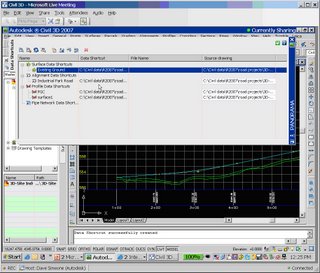
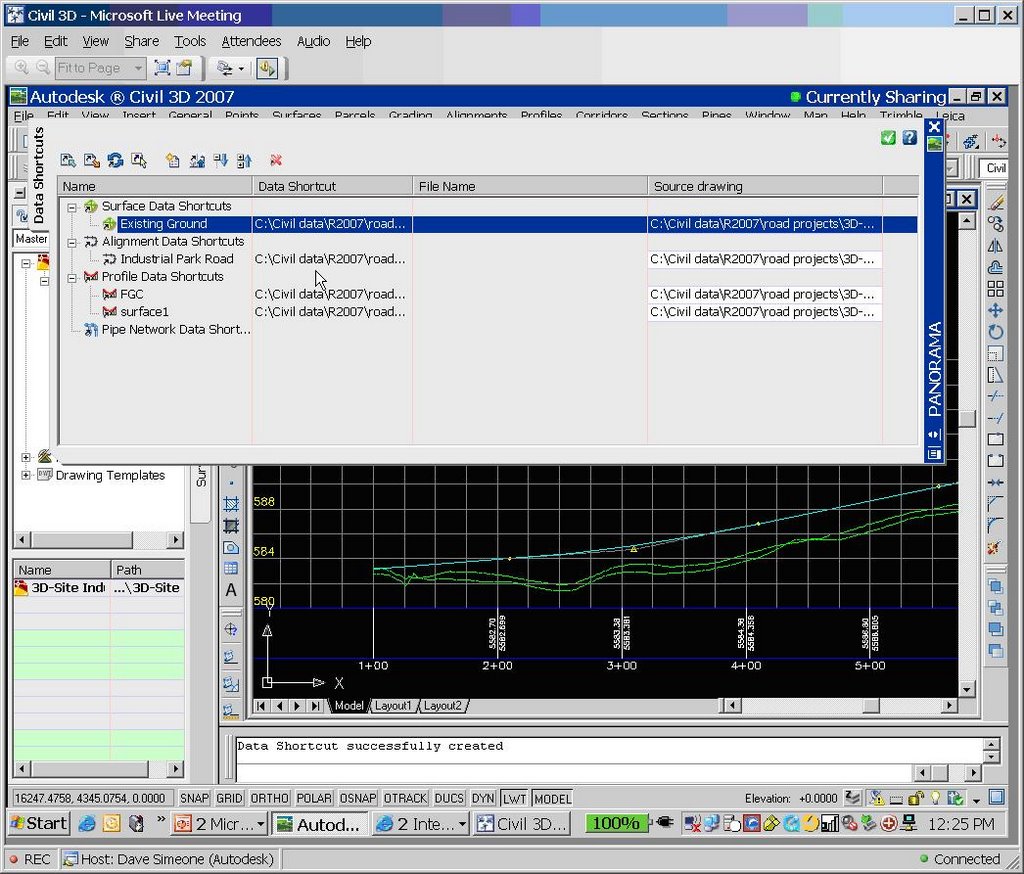
This last item translates to shortcuts that WILL ABSOLUTELY be remembered from session to session. No longer will we have to reload the .xml file from which we load data references. Remember data reference synchronization notifications. He also demonstrated a NEW ability to change the source file of a data reference (see image below).
So when is all this supposed to be available? They are aiming for the end of this month (October).
Civil 3D 2007 (SP1a, SP2 and NEW FIXES)
AutoCAD 2007 SP1
Map 3D 2007 SP3
Components of Vault SP1 (he made it clear, DO NOT INSTALL VAULT SP1 YET!)
He mentioned that users will likely see the following improvements:
2X Faster Corridor Processing Speed
50X Performance Jump in Project/Reference Interaction
Improved Surface Memory Usage (surface memory leaks have been an issue for some)
Stability Improvements
and (drum roll, please)
Restoration of Non-Projects Shortcuts
This last item translates to shortcuts that WILL ABSOLUTELY be remembered from session to session. No longer will we have to reload the .xml file from which we load data references. Remember data reference synchronization notifications. He also demonstrated a NEW ability to change the source file of a data reference (see image below).
So when is all this supposed to be available? They are aiming for the end of this month (October).
Tuesday, October 03, 2006
Vault and Shortcuts Future (Interesting Read)
If you have not already read the most recent post in the blog by Dave Simeone, Civil 3D Product Manager, and Dan Philbrick, Civil 3D Development Manager, about Civil 3D 2007, Vault and Data Shortcuts, I STRONGLY ENCOURAGE you to do so. Simply click on the title of this post to see what Dan says about these subjects.
He also mentions that anyone that wished to be a part of the beta program for their plans, they can make it so.
Lastly, Dan states that they will provide more details this Friday during the weekly webcast. Do not forget, to view the weekly webcasts it is necessary to register.
He also mentions that anyone that wished to be a part of the beta program for their plans, they can make it so.
Lastly, Dan states that they will provide more details this Friday during the weekly webcast. Do not forget, to view the weekly webcasts it is necessary to register.
Wednesday, June 21, 2006
2007 New, Changed, and Obsolete Commands
Autodesk has posted in the knowledge base all of the following information for New, Changed and Obsolete Commands
New Commands
Command - Description
3DALIGN - Aligns objects with other objects in 2D and 3D.
-3DCONFIG - Provides a command line interface to the 3D graphics system's configuration settings.
3DDWF - Displays the Export 3D DWF dialog box.
3DFLY - "Activates fly-through mode and enables you to navigate in any direction including off the XY plane."
3DFORBIT - "Controls the interactive viewing of objects in 3D, using an unconstrained orbit."
3DMOVE - Displays the move grip tool in a 3D view and moves objects a specified distance in a specified direction.
3DROTATE - Displays the rotate grip tool in a 3D view and revolves objects around a base point.
3DWALK - Interactively changes the view of a 3D drawing so that you appear to be walking through the model.
AECTOACAD - Creates a new DWG file with all AEC objects exploded.
ANIPATH - Saves an animation along a path in a 3D model.
BREP - Removes the history from 3D solid primitives and composite solids.
CHSPACE - "Moves objects from model space to paper space, or vice versa. (Integrated Express Tool)"
CONVERTOLDLIGHTS - Converts lights created in previous releases to lights in AutoCAD 2007 format.
CONVERTOLDMATERIALS - Converts materials created in previous releases to materials in AutoCAD 2007 format.
CONVTOSOLID - Converts polylines and circles with thickness to 3D solids.
CONVTOSURFACE - Converts objects to surfaces.
COPYTOLAYER - Copies one or more objects to another layer. (Integrated Express Tool)
-COPYTOLAYER - Copies one or more objects to another layer. (Command line version)
DASHBOARD - Opens the Dashboard window.
DASHBOARDCLOSE - Closes the Dashboard window.
DISTANTLIGHT - Creates a distant light.
DWFADJUST - Allows adjustment of a DWF underlay from the command line.
DWFATTACH - Attaches a DWF underlay to the current drawing.
DWFCLIP - Uses clipping boundaries to define a subregion of a DWF underlay.
EXTERNALREFERENCES - Displays the External References palette.
EXTERNALREFERENCESCLOSE - Closes the External References palette.
FLATSHOT - Creates a 2D representation of all 3D objects in the current view.
GEOGRAPHICLOCATION - Specifies the latitude and longitude of a location.
HELIX - Creates a 2D or 3D spiral.
IMPRINT - Imprints an edge on a 3D solid.
-INTERFERE - Highlights 3D solids that overlap. (Command line version)
JOGSECTION - Adds a jogged segment to a section object.
LAYCUR - Changes the layer of selected objects to the current layer. (Integrated Express Tool)
LAYDEL - "Deletes the layer of a selected object and all objects on the layer, and then purges the layer from the drawing. (Integrated Express Tool)"
-LAYDEL - "Deletes the layer of a selected object and all objects on the layer, and then purges the layer from the drawing. (Command line version)"
LAYFRZ - Freezes the layer of selected objects. (Integrated Express Tool)
LAYISO - Isolates the layer of selected objects so that all other layers are turned off. (Integrated Express Tool)
LAYLCK - Locks the layer of selected objects. (Integrated Express Tool)
LAYMCH - Changes the layer of a selected object to match the destination layer. (Integrated Express Tool)
-LAYMCH - Changes the layer of a selected object to match the destination layer. (Command line version)
LAYMCUR - Makes the layer of a selected object current. (Renamed AI_MOLC)
LAYMRG - Merges selected layers onto a destination layer. (Integrated Express Tool)
-LAYMRG - Merges selected layers onto a destination layer. (Command line version)
LAYOFF - Turns off the layer of the selected object. (Integrated Express Tool)
LAYON - Turns on all layers. (Integrated Express Tool)
LAYTHW - Thaws all layers. (Integrated Express Tool)
LAYULK - Unlocks the layer of a selected object. (Integrated Express Tool)
LAYUNISO - Turns on layers that were turned off with the last LAYISO command. (Integrated Express Tool)
LAYVPI - Isolates an object's layer to the current viewport. (Integrated Express Tool)
LAYWALK - Dynamically displays layers in a drawing. (Integrated Express Tool)
LIGHTLIST - Opens the Lights in Model window to add and modify lights.
LIGHTLISTCLOSE - Closes the Lights in Model window.
LIVESECTION - Turns on live sectioning for a selected section object.
LOFT - Creates a 3D solid or surface by lofting through a set of two or more curves.
MATERIALATTACH - Attaches materials to objects by layer.
MATERIALMAP - Displays a material mapper grip tool to adjust the mapping on a face or an object.
MATERIALS - "Manages, applies, and modifies materials."
MATERIALSCLOSE - Closes the Materials window.
PLANESURF - Creates a planar surface.
POINTLIGHT - Creates a point light.
POLYSOLID - Creates a 3D polysolid.
PRESSPULL - Presses or pulls bounded areas.
PYRAMID - Creates a 3D solid pyramid.
RENDERCROP - Selects a specific region (crop window) in an image for rendering.
RENDERENVIRONMENT - Provides visual cues for the apparent distance of objects.
RENDERPRESETS - "Specifies render presets, reusable rendering parameters, for rendering an image."
RENDERWIN - Displays the Render Window without invoking a render task.
RPREFCLOSE - Closes the Advanced Render Settings palette if it is displayed.
SECTIONPLANE - Creates a section object that acts as a cutting plane through a 3D object.
SPOTLIGHT - Creates a spotlight.
SUNPROPERTIES - Opens the Sun palette and sets the properties of the sun.
SUNPROPERTIESCLOSE - Closes the Sun Properties window.
SWEEP - Creates a 3D solid or surface by sweeping a 2D curve along a path.
THICKEN - Creates a 3D solid by thickening a surface.
VISUALSTYLES - Creates and modifies visual styles and applies a visual style to a viewport.
-VISUALSTYLES - Creates and modifies visual styles and applies a visual style to a viewport. (Command line version)
VISUALSTYLESCLOSE - Closes the Visual Styles Manager.
VSCURRENT - Sets the visual style in the current viewport.
VSSAVE - Saves a visual style.
WALKFLYSETTINGS - Specifies walk and fly settings.
XEDGES - Creates wireframe geometry by extracting edges from a 3D solid or surface.
Changed Commands -
Command - Description
3DCONFIG - Provides 3D graphics system configuration settings.
3DORBIT - Controls the interactive viewing of objects in 3D.
3DPAN - Starts the interactive 3D view and enables you to drag the view horizontally and vertically in a perspective view.
3DSWIVEL - Changes the target of the view in the direction that you drag.
3DZOOM - Zooms in and out in a perspective view.
ALIGN - Aligns objects with other objects in 2D and 3D.
BOX - Creates a 3D solid box.
CAMERA - Sets a camera and target location to create and save a 3D perspective view of objects.
CHANGE - Changes the properties of existing objects.
CHPROP - Changes the properties of an object.
CONE - Creates a 3D solid with a circular or elliptical base tapering symmetrically to a point or a circular/elliptical planar face.
CUI - "Manages customized user interface elements such as workspaces, toolbars, menus, shortcut menus and keyboard shortcuts."
CYLINDER - Creates a three-sided 3D solid with a circular or elliptical base and top.
DSETTINGS - "Sets grid and snap, polar and object snap tracking, object snap modes, and Dynamic Input."
DVIEW - Defines parallel projection or perspective views by using a camera and target.
ETRANSMIT - Packages a set of files for Internet transmission.
-ETRANSMIT - Packages a set of files for Internet transmission. (Command line version)
EXPLODE - Breaks a compound object into its component objects.
EXTRUDE - Creates a 3D solid or surface by extruding an object or planar face a specified distance and direction.
FIELD - Creates a multiline text object with a field that can be updated automatically as the field value changes.
GRID - Displays a grid in the current viewport that is not plotted.
HIDE - Regenerates a three-dimensional wireframe model with hidden lines suppressed.
HLSETTINGS - Changes the display properties of lines in 2D wireframes.
IMAGE - Starts the EXTERNALREFERENCES command allowing for image management.
-IMAGE - Allows access to image options from the command line.
IMAGEADJUST - "Controls the image display of the brightness, contrast, and fade values of images."
-IMAGEADJUST - "Controls the image display of the brightness, contrast, and fade values of images. (Command line version)"
IMAGEATTACH - Attaches a new image to the current drawing.
IMAGECLIP - Uses clipping boundaries to define a subregion of an image object.
IMAGEQUALITY - Controls the display quality of images.
INTERFERE - Highlights 3D solids that overlap.
JOIN - "Joins objects to form a single, unbroken object."
LIGHT - Creates a light.
LIST - Displays database information for selected objects.
MATCHPROP - Applies the properties of a selected object to other objects.
MVIEW - Creates and controls layout viewports.
OPTIONS - Customizes the program settings.
PAGESETUP - "Controls the page layout, plotting device, paper size, and other settings for each new layout."
PLOT - "Plots a drawing to a plotter, printer, or file."
PUBLISH - Publishes drawings to DWF files or plotters.
PURGE - "Removes unused named items, such as block definitions and layers, from the drawing."
-PURGE - "Removes unused named items, such as block definitions and layers, from the drawing. (Command line version)"
QSELECT - Creates a selection set based on filtering criteria.
RECTANG - Draws a rectangular polyline.
REFCLOSE - Saves back or discards changes made during in-place editing of a reference (an xref or a block).
REFEDIT - Selects an external reference or block reference for editing.
RENDER - Creates a photorealistic or realistically shaded image of a three-dimensional wireframe or solid model.
REVOLVE - Creates a 3D solid or surface by revolving 2D objects around an axis.
RPREF - Displays the Advanced Render Settings palette for access to advanced rendering settings.
SAVEIMG - Saves a rendered image to a file.
SELECT - Places selected objects in the Previous selection set.
SHADEMODE - Starts the VSCURRENT command.
SHEETSET - Opens the Sheet Set Manager.
SLICE - Slices a solid with a plane or surface.
SNAP - Restricts cursor movement to specified intervals.
SOLIDEDIT - Edits faces and edges of 3D solid objects.
SPHERE - Creates a 3D solid sphere.
TORUS - Creates a 3D donut-shaped solid.
UCS - Manages user coordinate systems.
VIEW - "Saves and restores named views, camera views, layout views, and preset views."
-VPORTS - Creates multiple viewports in model space or paper space. (Command line version)
WBLOCK - Writes objects or a block to a new drawing file.
-WBLOCK - Writes objects or a block to a new drawing file. (Command line version)
WEDGE - Creates a five-sided 3D solid with a sloped face tapering along the X axis.
XREF - Starts the EXTERNALREFERENCES command.
Removed or Obsolete Commands -
Command - Description
3DDWFPUBLISH - Creates 3D DWF files of three-dimensional models. (Replaced with 3DDWF)
3DSOUT - Exports to a 3D Studio (3DS) file. (No replacement)
BACKGROUND - Sets up the background for your scene. (Merged with VIEW)
FOG - Provides visual cues for the apparent distance of objects. (Replaced by RENDERENVIRONMENT)
LSEDIT - Edits a landscape object. (No replacement)
LSLIB - Maintains libraries of landscape objects. (No replacement)
LSNEW - "Adds realistic landscape items, such as trees and bushes, to your drawings. (No replacement)"
MATLIB - Imports and exports materials to and from a library of materials. (Replaced by MATERIALS)
RENDSCR - Preserves the integrity of scripts. (No replacement)
REPLAY - "Displays a BMP, TGA, or TIFF image. (No replacement)"
RMAT - Manages rendering materials. (Replaced by MATERIALS)
SCENE - Manages scenes in model space. (No replacement)
SETUV - Maps materials onto objects. (Replaced by MATERIALMAP)
SHOWMAT - Lists the material type and attachment method for a selected object. (Replaced by LIST)
STATS - Displays rendering statistics. (Merged with RENDERWIN)
New Commands
Command - Description
3DALIGN - Aligns objects with other objects in 2D and 3D.
-3DCONFIG - Provides a command line interface to the 3D graphics system's configuration settings.
3DDWF - Displays the Export 3D DWF dialog box.
3DFLY - "Activates fly-through mode and enables you to navigate in any direction including off the XY plane."
3DFORBIT - "Controls the interactive viewing of objects in 3D, using an unconstrained orbit."
3DMOVE - Displays the move grip tool in a 3D view and moves objects a specified distance in a specified direction.
3DROTATE - Displays the rotate grip tool in a 3D view and revolves objects around a base point.
3DWALK - Interactively changes the view of a 3D drawing so that you appear to be walking through the model.
AECTOACAD - Creates a new DWG file with all AEC objects exploded.
ANIPATH - Saves an animation along a path in a 3D model.
BREP - Removes the history from 3D solid primitives and composite solids.
CHSPACE - "Moves objects from model space to paper space, or vice versa. (Integrated Express Tool)"
CONVERTOLDLIGHTS - Converts lights created in previous releases to lights in AutoCAD 2007 format.
CONVERTOLDMATERIALS - Converts materials created in previous releases to materials in AutoCAD 2007 format.
CONVTOSOLID - Converts polylines and circles with thickness to 3D solids.
CONVTOSURFACE - Converts objects to surfaces.
COPYTOLAYER - Copies one or more objects to another layer. (Integrated Express Tool)
-COPYTOLAYER - Copies one or more objects to another layer. (Command line version)
DASHBOARD - Opens the Dashboard window.
DASHBOARDCLOSE - Closes the Dashboard window.
DISTANTLIGHT - Creates a distant light.
DWFADJUST - Allows adjustment of a DWF underlay from the command line.
DWFATTACH - Attaches a DWF underlay to the current drawing.
DWFCLIP - Uses clipping boundaries to define a subregion of a DWF underlay.
EXTERNALREFERENCES - Displays the External References palette.
EXTERNALREFERENCESCLOSE - Closes the External References palette.
FLATSHOT - Creates a 2D representation of all 3D objects in the current view.
GEOGRAPHICLOCATION - Specifies the latitude and longitude of a location.
HELIX - Creates a 2D or 3D spiral.
IMPRINT - Imprints an edge on a 3D solid.
-INTERFERE - Highlights 3D solids that overlap. (Command line version)
JOGSECTION - Adds a jogged segment to a section object.
LAYCUR - Changes the layer of selected objects to the current layer. (Integrated Express Tool)
LAYDEL - "Deletes the layer of a selected object and all objects on the layer, and then purges the layer from the drawing. (Integrated Express Tool)"
-LAYDEL - "Deletes the layer of a selected object and all objects on the layer, and then purges the layer from the drawing. (Command line version)"
LAYFRZ - Freezes the layer of selected objects. (Integrated Express Tool)
LAYISO - Isolates the layer of selected objects so that all other layers are turned off. (Integrated Express Tool)
LAYLCK - Locks the layer of selected objects. (Integrated Express Tool)
LAYMCH - Changes the layer of a selected object to match the destination layer. (Integrated Express Tool)
-LAYMCH - Changes the layer of a selected object to match the destination layer. (Command line version)
LAYMCUR - Makes the layer of a selected object current. (Renamed AI_MOLC)
LAYMRG - Merges selected layers onto a destination layer. (Integrated Express Tool)
-LAYMRG - Merges selected layers onto a destination layer. (Command line version)
LAYOFF - Turns off the layer of the selected object. (Integrated Express Tool)
LAYON - Turns on all layers. (Integrated Express Tool)
LAYTHW - Thaws all layers. (Integrated Express Tool)
LAYULK - Unlocks the layer of a selected object. (Integrated Express Tool)
LAYUNISO - Turns on layers that were turned off with the last LAYISO command. (Integrated Express Tool)
LAYVPI - Isolates an object's layer to the current viewport. (Integrated Express Tool)
LAYWALK - Dynamically displays layers in a drawing. (Integrated Express Tool)
LIGHTLIST - Opens the Lights in Model window to add and modify lights.
LIGHTLISTCLOSE - Closes the Lights in Model window.
LIVESECTION - Turns on live sectioning for a selected section object.
LOFT - Creates a 3D solid or surface by lofting through a set of two or more curves.
MATERIALATTACH - Attaches materials to objects by layer.
MATERIALMAP - Displays a material mapper grip tool to adjust the mapping on a face or an object.
MATERIALS - "Manages, applies, and modifies materials."
MATERIALSCLOSE - Closes the Materials window.
PLANESURF - Creates a planar surface.
POINTLIGHT - Creates a point light.
POLYSOLID - Creates a 3D polysolid.
PRESSPULL - Presses or pulls bounded areas.
PYRAMID - Creates a 3D solid pyramid.
RENDERCROP - Selects a specific region (crop window) in an image for rendering.
RENDERENVIRONMENT - Provides visual cues for the apparent distance of objects.
RENDERPRESETS - "Specifies render presets, reusable rendering parameters, for rendering an image."
RENDERWIN - Displays the Render Window without invoking a render task.
RPREFCLOSE - Closes the Advanced Render Settings palette if it is displayed.
SECTIONPLANE - Creates a section object that acts as a cutting plane through a 3D object.
SPOTLIGHT - Creates a spotlight.
SUNPROPERTIES - Opens the Sun palette and sets the properties of the sun.
SUNPROPERTIESCLOSE - Closes the Sun Properties window.
SWEEP - Creates a 3D solid or surface by sweeping a 2D curve along a path.
THICKEN - Creates a 3D solid by thickening a surface.
VISUALSTYLES - Creates and modifies visual styles and applies a visual style to a viewport.
-VISUALSTYLES - Creates and modifies visual styles and applies a visual style to a viewport. (Command line version)
VISUALSTYLESCLOSE - Closes the Visual Styles Manager.
VSCURRENT - Sets the visual style in the current viewport.
VSSAVE - Saves a visual style.
WALKFLYSETTINGS - Specifies walk and fly settings.
XEDGES - Creates wireframe geometry by extracting edges from a 3D solid or surface.
Changed Commands -
Command - Description
3DCONFIG - Provides 3D graphics system configuration settings.
3DORBIT - Controls the interactive viewing of objects in 3D.
3DPAN - Starts the interactive 3D view and enables you to drag the view horizontally and vertically in a perspective view.
3DSWIVEL - Changes the target of the view in the direction that you drag.
3DZOOM - Zooms in and out in a perspective view.
ALIGN - Aligns objects with other objects in 2D and 3D.
BOX - Creates a 3D solid box.
CAMERA - Sets a camera and target location to create and save a 3D perspective view of objects.
CHANGE - Changes the properties of existing objects.
CHPROP - Changes the properties of an object.
CONE - Creates a 3D solid with a circular or elliptical base tapering symmetrically to a point or a circular/elliptical planar face.
CUI - "Manages customized user interface elements such as workspaces, toolbars, menus, shortcut menus and keyboard shortcuts."
CYLINDER - Creates a three-sided 3D solid with a circular or elliptical base and top.
DSETTINGS - "Sets grid and snap, polar and object snap tracking, object snap modes, and Dynamic Input."
DVIEW - Defines parallel projection or perspective views by using a camera and target.
ETRANSMIT - Packages a set of files for Internet transmission.
-ETRANSMIT - Packages a set of files for Internet transmission. (Command line version)
EXPLODE - Breaks a compound object into its component objects.
EXTRUDE - Creates a 3D solid or surface by extruding an object or planar face a specified distance and direction.
FIELD - Creates a multiline text object with a field that can be updated automatically as the field value changes.
GRID - Displays a grid in the current viewport that is not plotted.
HIDE - Regenerates a three-dimensional wireframe model with hidden lines suppressed.
HLSETTINGS - Changes the display properties of lines in 2D wireframes.
IMAGE - Starts the EXTERNALREFERENCES command allowing for image management.
-IMAGE - Allows access to image options from the command line.
IMAGEADJUST - "Controls the image display of the brightness, contrast, and fade values of images."
-IMAGEADJUST - "Controls the image display of the brightness, contrast, and fade values of images. (Command line version)"
IMAGEATTACH - Attaches a new image to the current drawing.
IMAGECLIP - Uses clipping boundaries to define a subregion of an image object.
IMAGEQUALITY - Controls the display quality of images.
INTERFERE - Highlights 3D solids that overlap.
JOIN - "Joins objects to form a single, unbroken object."
LIGHT - Creates a light.
LIST - Displays database information for selected objects.
MATCHPROP - Applies the properties of a selected object to other objects.
MVIEW - Creates and controls layout viewports.
OPTIONS - Customizes the program settings.
PAGESETUP - "Controls the page layout, plotting device, paper size, and other settings for each new layout."
PLOT - "Plots a drawing to a plotter, printer, or file."
PUBLISH - Publishes drawings to DWF files or plotters.
PURGE - "Removes unused named items, such as block definitions and layers, from the drawing."
-PURGE - "Removes unused named items, such as block definitions and layers, from the drawing. (Command line version)"
QSELECT - Creates a selection set based on filtering criteria.
RECTANG - Draws a rectangular polyline.
REFCLOSE - Saves back or discards changes made during in-place editing of a reference (an xref or a block).
REFEDIT - Selects an external reference or block reference for editing.
RENDER - Creates a photorealistic or realistically shaded image of a three-dimensional wireframe or solid model.
REVOLVE - Creates a 3D solid or surface by revolving 2D objects around an axis.
RPREF - Displays the Advanced Render Settings palette for access to advanced rendering settings.
SAVEIMG - Saves a rendered image to a file.
SELECT - Places selected objects in the Previous selection set.
SHADEMODE - Starts the VSCURRENT command.
SHEETSET - Opens the Sheet Set Manager.
SLICE - Slices a solid with a plane or surface.
SNAP - Restricts cursor movement to specified intervals.
SOLIDEDIT - Edits faces and edges of 3D solid objects.
SPHERE - Creates a 3D solid sphere.
TORUS - Creates a 3D donut-shaped solid.
UCS - Manages user coordinate systems.
VIEW - "Saves and restores named views, camera views, layout views, and preset views."
-VPORTS - Creates multiple viewports in model space or paper space. (Command line version)
WBLOCK - Writes objects or a block to a new drawing file.
-WBLOCK - Writes objects or a block to a new drawing file. (Command line version)
WEDGE - Creates a five-sided 3D solid with a sloped face tapering along the X axis.
XREF - Starts the EXTERNALREFERENCES command.
Removed or Obsolete Commands -
Command - Description
3DDWFPUBLISH - Creates 3D DWF files of three-dimensional models. (Replaced with 3DDWF)
3DSOUT - Exports to a 3D Studio (3DS) file. (No replacement)
BACKGROUND - Sets up the background for your scene. (Merged with VIEW)
FOG - Provides visual cues for the apparent distance of objects. (Replaced by RENDERENVIRONMENT)
LSEDIT - Edits a landscape object. (No replacement)
LSLIB - Maintains libraries of landscape objects. (No replacement)
LSNEW - "Adds realistic landscape items, such as trees and bushes, to your drawings. (No replacement)"
MATLIB - Imports and exports materials to and from a library of materials. (Replaced by MATERIALS)
RENDSCR - Preserves the integrity of scripts. (No replacement)
REPLAY - "Displays a BMP, TGA, or TIFF image. (No replacement)"
RMAT - Manages rendering materials. (Replaced by MATERIALS)
SCENE - Manages scenes in model space. (No replacement)
SETUV - Maps materials onto objects. (Replaced by MATERIALMAP)
SHOWMAT - Lists the material type and attachment method for a selected object. (Replaced by LIST)
STATS - Displays rendering statistics. (Merged with RENDERWIN)
Wednesday, May 03, 2006
Civil 3D 2007 - Data Shortcuts
Corrected: Thanks to Josh Nelson for the comment!
Before Vault there were data shortcuts. There were two ways to use data shortcuts 1. Through the old project environment (the most common approach). 2. By manually creating, managing, and using them.
Now that projects are handled through Vault, what has happened to data shortcuts?
Well, they still exist. Although, they have changed. Because now they can only be created, managed, and used manually.
The new data shortcuts do require hands-on interaction and attention. But, this manual method is more flexible in that I do not need a project. Now don't get me wrong, in order to share project data Vault is the proper solution. But, data shortcuts have a place in our world. Typically very small projects.
By the way, data shortcuts can now be used for Pipe Networks in addition to Surfaces, Alignment, and Profiles which were always possible.
OK, how do we use them?
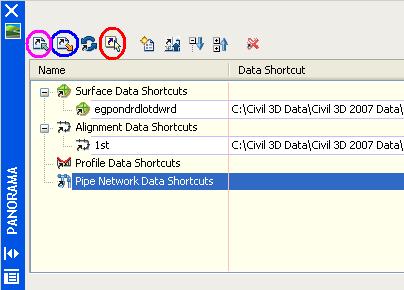
1. In a drawing that contains shortcut-able (I just created that word. Feel free to use it) objects click "General" > "Data Shortcuts" > "Edit Data Shortcuts...".
2. In the "Data Shortcuts" vista of the "Panorama" view click "Create data shortcut by selection" (4th icon, I circled it in red in the image above). Then select the object you wish use via shortcuts.
A shortcut is created but we have to export it by creating an .XML file.
3. In the "Data Shortcuts" vista of the "Panorama" view click "Export data shortcuts to file" (2nd icon, I circled it in blue in the image above). Then Name .XML file.
Now, the shortcut is available for use in another drawing. We now need to create a data reference
4. In a drawing where we wish to use a data shortcut click "General" > "Data Shortcuts" > "Edit Data Shortcuts...".
5. In the "Data Shortcuts" vista of the "Panorama" view click "Import data shortcuts to file" (1st icon, I circled it in magenta in the image above). Then select the .XML file created in step 3.
6. In the "Data Shortcuts" vista of the "Panorama" select the imported shortcut to create a reference for and then click "Create reference" (5th icon, I did not circle it in the image above).
a reference to the shortcut-ed object is then created.
We still get data synchronization messages as before. Remember this can be done without a project.
Wednesday, November 09, 2005
Hot Fix 2 Available!
Hot Fix 2 is now available. It fixes a few items related to:
Pipe networks
grading to Surfaces from shortcuts
labeling Alignments from shortcuts
Select the title of this post to get to download page.
Pipe networks
grading to Surfaces from shortcuts
labeling Alignments from shortcuts
Select the title of this post to get to download page.
Monday, October 24, 2005
Improving Civil 3D Performance by Adsk
The following information is straight from the Autodesk Knowledge Base about Civil 3D 2006. It offers suggestions on how to improve performance with Civil 3D 2006.
1. Disable the Rebuild Automatic option for Surfaces and Corridors.
2. Change styles to limit the objects displayed in the drawing.
3. Use data shortcuts to reduce the amount of data in a working drawing.
4. Copy project files located on a network drive to a local drive.
5. Use the Cache model tab and the all layout tabs option on the System tab in the Options dialog box.
6. Increase Autosave timings on the Open and Save tab in the Options dialog box.
7. Change the value of the INDEXCTL variable to 0 (zero).
8. Turn off the Dynamic Input methods and selection previews.
The title of this post takes you right to the actual document.
1. Disable the Rebuild Automatic option for Surfaces and Corridors.
2. Change styles to limit the objects displayed in the drawing.
3. Use data shortcuts to reduce the amount of data in a working drawing.
4. Copy project files located on a network drive to a local drive.
5. Use the Cache model tab and the all layout tabs option on the System tab in the Options dialog box.
6. Increase Autosave timings on the Open and Save tab in the Options dialog box.
7. Change the value of the INDEXCTL variable to 0 (zero).
8. Turn off the Dynamic Input methods and selection previews.
The title of this post takes you right to the actual document.
Tuesday, September 27, 2005
Mini Demonstrations
For anyone interested in introductory demonstrations of Civil 3D the title of this post is linked to the "Demonstration" page at the Autodesk website. There you will find links to eight short (2-3 Minutes) demonstation on the following subjects.
User Interface
Surfaces
Styles
Points
Data Shortcuts
Alignments
Profiles
Corridor Model
Useful in showing the capabilities of these features, a viewer can also follow the steps and learn a little bit of the Language of Civil 3D.
User Interface
Surfaces
Styles
Points
Data Shortcuts
Alignments
Profiles
Corridor Model
Useful in showing the capabilities of these features, a viewer can also follow the steps and learn a little bit of the Language of Civil 3D.
Friday, April 01, 2005
Data Shortcuts Revisted
During the Autodesk Civil 3D webcast today, Rob Todd explained the use of Data Shortcuts in detail. There are three components:
The Data Definition - This is the Object (Alignment, Surface, Profile) that will be made available for referencing into other drawings (convenient in the Civil 3D 2006 project environment).
The Data Shortcut - A link to the original object data definition. We can create a shortcut from the Prospector or by selecting an object and right-clicking. If we are working in the Civil 3D 2006 Project environment this link is "managed" automatically for the user.
The Data Reference - By selecting "Create Reference" from a shortcut we introduce a lightweight, non-editable (read-only) reference to the original object. We can still control the appearance with styles. We can also use the object to create related object such as create a profile from a referenced alignment and a referenced surface.
Rob also detailed the directory structure he uses to store a project.
Securing project data can be handled by locking layers on which important data reside and/or by limiting edit permissions to directories where original data is stored.
The important thing to note is that now many users can have access to this important data without the possibility of modifying the data inadvertently.
The Data Definition - This is the Object (Alignment, Surface, Profile) that will be made available for referencing into other drawings (convenient in the Civil 3D 2006 project environment).
The Data Shortcut - A link to the original object data definition. We can create a shortcut from the Prospector or by selecting an object and right-clicking. If we are working in the Civil 3D 2006 Project environment this link is "managed" automatically for the user.
The Data Reference - By selecting "Create Reference" from a shortcut we introduce a lightweight, non-editable (read-only) reference to the original object. We can still control the appearance with styles. We can also use the object to create related object such as create a profile from a referenced alignment and a referenced surface.
Rob also detailed the directory structure he uses to store a project.
Securing project data can be handled by locking layers on which important data reside and/or by limiting edit permissions to directories where original data is stored.
The important thing to note is that now many users can have access to this important data without the possibility of modifying the data inadvertently.
Thursday, March 17, 2005
Migrating Customization to 2006
Autodesk is making it easier for many users to migrate their customized tools to a 2006 based version of their software.
Firstly, during installation there is an new automated tool that can read existing customized menus and toolbars and transfers them to the new 2006 installation.
Secondly, the Customization User Interface (CUI) is an XML based file that will keep track of the customized user interface elements. This is a single interface that manages all of the following:
Menus
Short Cut Menus
Toolbars
Workspaces (NEW ITEM)
Keyboard Shortcuts
Mouse Buttons
Lisp Files
adds tooltips
adds descriptive text on the stauts line.
There are both MAIN CUI files which are editable per user and ENTERPRISE CUI files, which will be read-only and typically controlled by a CAD Manager, that are available to all in a shared fashion.
Firstly, during installation there is an new automated tool that can read existing customized menus and toolbars and transfers them to the new 2006 installation.
Secondly, the Customization User Interface (CUI) is an XML based file that will keep track of the customized user interface elements. This is a single interface that manages all of the following:
Menus
Short Cut Menus
Toolbars
Workspaces (NEW ITEM)
Keyboard Shortcuts
Mouse Buttons
Lisp Files
adds tooltips
adds descriptive text on the stauts line.
There are both MAIN CUI files which are editable per user and ENTERPRISE CUI files, which will be read-only and typically controlled by a CAD Manager, that are available to all in a shared fashion.
Subscribe to:
Posts (Atom)
